
Let me start with a confession. I’ve seen perfectly smart people buy completely wrong digital signage setups. A restaurant owner once bought a beautiful outdoor-rated screen for his indoor dining room. It cost three times what he needed to spend. A retail chain bought cheap consumer TVs and wondered why they failed after six months of 16/7 operation.
The problem isn’t that digital signage is complicated. The problem is that most buying guides focus on features nobody actually needs. 8K resolution? Fancy edge-blending? AI-powered content analytics? Sure, those exist. But for 90% of installations, you need to answer three simple questions about environment, brightness, and system.
That’s it. Environment. Brightness. System.
Let me walk you through the digital signage buying guide that actually matters for 2026. No fluff. No buzzwords. Just practical advice to help you buy the right screen the first time.
# The Three Pillars of Digital Signage Selection
Before we dive into specific products or brands, let me give you the framework. Every how to choose digital signage decision comes down to these three factors:
| Pillar | What it answers | Why it matters |
| Environment | Where will the screen live? | Determines durability, weatherproofing, temperature tolerance |
| Brightness | How bright is the surrounding light? | Determines if people can actually see the screen |
| System | How will you manage content? | Determines ease of use, total cost of ownership, scalability |
Get these three right, and everything else is details. Get one wrong, and your digital signage project will frustrate you forever.
Let’s break down each pillar.
# Pillar 1: Environment (Where Does the Screen Live?)
This is the most overlooked question in digital signage buying. People buy screens based on size and price, not based on where the screen will actually hang. Big mistake.
Ask yourself these environmental questions:
Indoor or outdoor?
– Indoor: Climate controlled. No rain. No direct sun (usually). Temperature range 15-30°C (59-86°F). This is the easiest environment. Almost any commercial screen works.
– Outdoor: Rain, humidity, direct sun, temperature swings from -20°C to 50°C (-4°F to 122°F). You need an outdoor digital signage screen with high IP rating (IP65 or higher), high brightness (2,000+ nits), and active thermal management (fans or AC).
Semi-outdoor: This is the trap zone. Covered but open on the sides. Think gas station canopies, covered bus shelters, storefront windows facing out. You still need weather protection (IP54 minimum) and higher brightness (1,000-1,500 nits). An indoor screen will fail here within months.
Direct sunlight exposure?
Even indoor screens near windows face this. Sunlight adds heat and glare. If afternoon sun hits your screen directly, you need semi-outdoor specifications regardless of being “inside.”
Temperature extremes?
A screen in a ski resort lobby faces cold every time the door opens. A screen above a commercial kitchen faces constant heat. Measure the actual temperature at the mounting location *during operation*. If it’s consistently outside 0-40°C (32-104°F), you need an extended-temperature screen.
Dust, grease, or moisture?
– Kitchens: Grease aerosol kills screens. Need sealed chassis and washable covers.
– Factories: Dust and vibration. Need fanless cooling (fans suck in dust) and shock mounting.
– Bathrooms or pool areas: High humidity. Need IP-rated moisture sealing.
The bottom line on environment: Don’t guess. Measure. Walk to the installation location at the hottest time of day and the coldest time of year. If you can’t tolerate standing there for an hour, neither can a standard screen.
# Pillar 2: Brightness (Can People Actually See It?)
I wrote an entire article about brightness (Article 21), so I’ll keep this focused on the buying decision.
Here’s the simple digital signage brightness rule most people get wrong: *Indoor screens do not need to be as bright as outdoor screens.*
Yet I see people buying 2,500-nit outdoor screens for their climate-controlled retail store because “brighter is better.” It’s not. It’s just more expensive and hotter-running.
Use this cheat sheet:
| Environment | Recommended brightness | Notes |
| Dark room (nightclub, theater, control room) | 200-300 nits | Anything brighter causes eye strain |
| Office or retail with controlled lighting | 300-500 nits | Standard commercial screen range |
| Bright retail (skylights, glass walls) | 500-700 nits | Need anti-glare treatment |
| Storefront window (facing out) | 700-1,500 nits | Fighting sunlight from behind viewer |
| Covered outdoor (canopy, bus shelter) | 1,000-1,500 nits | IP54+ weather rating required |
| Direct sun outdoor | 2,000-3,000 nits | IP65+, active cooling required |
The 350-nit question: Many buyers ask “is 350 nits enough?” For a standard office or retail store with no direct sunlight, yes, 350 nits is fine. But if you have skylights, glass walls, or bright overhead LEDs, you’ll want 500 nits. When in doubt, go to 500 nits. The cost difference is small. The visibility difference is not.
Automatic brightness control (ABC): This feature is non-negotiable for 2026. ABC uses an ambient light sensor to automatically dim the screen at night and brighten it during the day. It saves power, extends screen life, and prevents your screen from being blindingly bright in dark environments. If a screen doesn’t have ABC, keep looking.
# Pillar 3: System (How Do You Manage Content?)

This is where how to choose digital signage gets tricky because the hardware (the screen) and the software (the content management system or CMS) are often sold separately.
You have three options for system architecture:
Option A: Consumer/Prosumer (No CMS, USB playback)
– How it works: You put videos or images on a USB drive. Plug it into the screen. The screen loops the content.
– Best for: Single-screen installations where content changes rarely (monthly or less). Small cafes, barbershops, dental offices.
– Pros: Cheap. No ongoing software fees. No network required.
– Cons: Manual updates. No scheduling. No remote management. Painful for more than 2-3 screens.
– Typical cost: $0/month software.
Option B: Cloud-based CMS (Subscription)
– How it works: Screens connect to WiFi or Ethernet. You upload content through a web dashboard or mobile app. Screens download and display content automatically.
– Best for: Most commercial installations. Retail chains, restaurants, corporate offices, schools.
– Pros: Remote management. Scheduling (change content by time of day or day of week). Content templates. Analytics (play counts, screen health). Scalable to hundreds of screens.
– Cons: Ongoing monthly fees ($5-20 per screen per month). Requires network connectivity.
– Typical cost: $10-15/screen/month.
Option C: On-premise CMS (Enterprise)
– How it works: You run the content management software on your own servers. Screens connect internally.
– Best for: Large enterprises with strict security requirements (banks, government, hospitals). Hundreds or thousands of screens.
– Pros: Full control. No monthly per-screen fees (but higher upfront). Works in air-gapped networks.
– Cons: Expensive upfront ($5,000-50,000). Requires IT staff to maintain servers. Overkill for most.
– Typical cost: $5,000-50,000 upfront + annual maintenance.
Which system should you choose?
For 90% of buyers reading this guide, Option B (cloud-based CMS) is the right answer. It gives you remote management, scheduling, and analytics without IT headaches. Most major digital signage hardware brands offer their own CMS or partner with third-party providers like ScreenCloud, OptiSigns, or Yodeck.
One critical tip: Before buying hardware, check which CMS platforms are compatible. Some screens are “locked” to a specific CMS (usually the manufacturer’s own). Others are “open” and work with any CMS. Open is almost always better unless you love vendor lock-in.
# Beyond the Three Pillars (Secondary Factors)
Once you’ve nailed environment, brightness, and system, consider these secondary factors:
Resolution: For bar displays and standard digital signage, 1080p (1920×1080) or 1920×720 (for stretched screens) is plenty. 4K is overkill for most signage because viewing distances are long. Don’t pay for 4K unless you’re making a 65-inch+ screen that people will stand within 1 meter of.
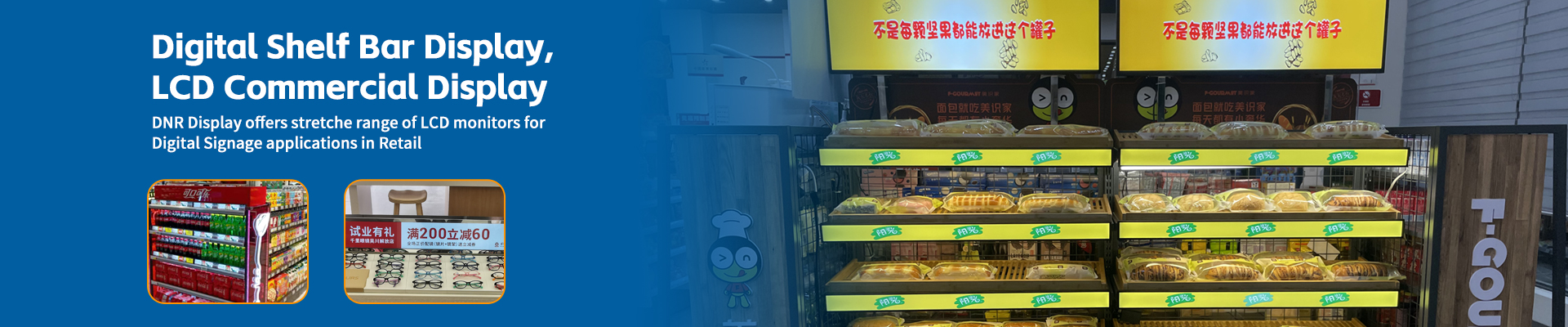
Aspect ratio: Standard 16:9 works for most. But consider stretched LCD (16:3, 32:9, or custom) for shelf edges, transportation, elevator lobbies, and menu boards. The long, skinny format fits tight spaces and catches attention differently than a square screen.
Touch or no touch? Touch adds cost (30-50%) and complexity (calibration, cleaning). Only buy touch if there’s a clear use case: wayfinding kiosks, self-service ordering, interactive product catalogs. For pure advertising or information display, touch is wasted money.
Connectivity: Make sure the screen has the inputs you need. WiFi (5GHz preferred, not just 2.4GHz). Ethernet (for reliability). HDMI input (for local testing or backup sources). USB (for firmware updates). SD card slot (optional but nice).
Warranty and support: Commercial digital signage should have a 3-year manufacturer warranty minimum. Consumer TVs have 1-year warranties. If a seller offers less than 3 years, walk away. Also check if the warranty covers on-site replacement or requires you to ship the screen back. On-site is worth paying for.
# The 2026 Buying Decision Flowchart
Still confused? Follow this simple decision flow:
- Where is the screen?
– Indoors, climate controlled → Go to step 2
– Outdoors or semi-outdoor → Buy outdoor-rated screen (IP65+, high brightness, active cooling). Stop. You’re done with this flowchart.
- What’s the ambient light?
– Dark or controlled lighting → 300-400 nits
– Normal retail/office → 400-500 nits
– Bright (skylights, windows) → 500-700 nits
- How many screens?
– 1-2 screens, content changes rarely → USB playback (no CMS)
– 1-50 screens → Cloud CMS ($10-15/screen/month)
– 50+ screens with security needs → On-premise CMS
- What’s the aspect ratio need?
– Standard video/content → 16:9
– Narrow spaces, shelf edges, transit → Stretched LCD (16:3, 32:9)
- What’s your budget?
– Under $500/screen → Consumer TV (shorter lifespan, but works for low-hours use)
– $500-1,500/screen → Commercial 16:9 display
– $1,500-3,000/screen → Commercial stretched LCD or outdoor-rated
# Common Mistakes (Learn From Others)
Mistake #1: Buying a consumer TV for 24/7 operation.
Reality: Consumer TVs are designed for 4-6 hours per day. Run them 16-24 hours and they’ll fail within a year. Commercial screens have better cooling, better components, and longer warranties.
Mistake #2: Ignoring viewing angles.
Reality: A cheap VA panel looks fine from the front but looks washed out from the side. If people walk past your screen (retail aisles, transit corridors), pay for IPS.
Mistake #3: Buying the screen first, then figuring out software.
Reality: Some screens are locked to specific CMS platforms. Choose your software strategy first, then buy compatible hardware.
Mistake #4: Forgetting about mounting and cables.
Reality: The screen is 60% of the cost. Mounting hardware, cables, network drops, and installation labor are the other 40%. Budget for these.
# Conclusion
Choosing digital signage doesn’t have to be hard. Focus on the three pillars: environment, brightness, and system. Answer those three questions honestly, and you’ll avoid 90% of the mistakes I see buyers make.
For 2026, the sweet spot for most indoor commercial installations is:
– Display: Commercial-grade (not consumer), 400-500 nits, IPS panel (for wide viewing angles), 3-year warranty
– Aspect ratio: 16:9 for general use, stretched LCD (16:3 or 32:9) for narrow spaces
– CMS: Cloud-based, $10-15/screen/month, with remote management and scheduling
– Mounting: Wall mount with 50mm clearance for ventilation
That’s it. That’s the digital signage buying guide you actually need. Now go buy with confidence.


